- Published on
Deploying Containers on AWS ECS — End-to-End Architecture Explained
- Authors

- Name
- Hoang Nguyen
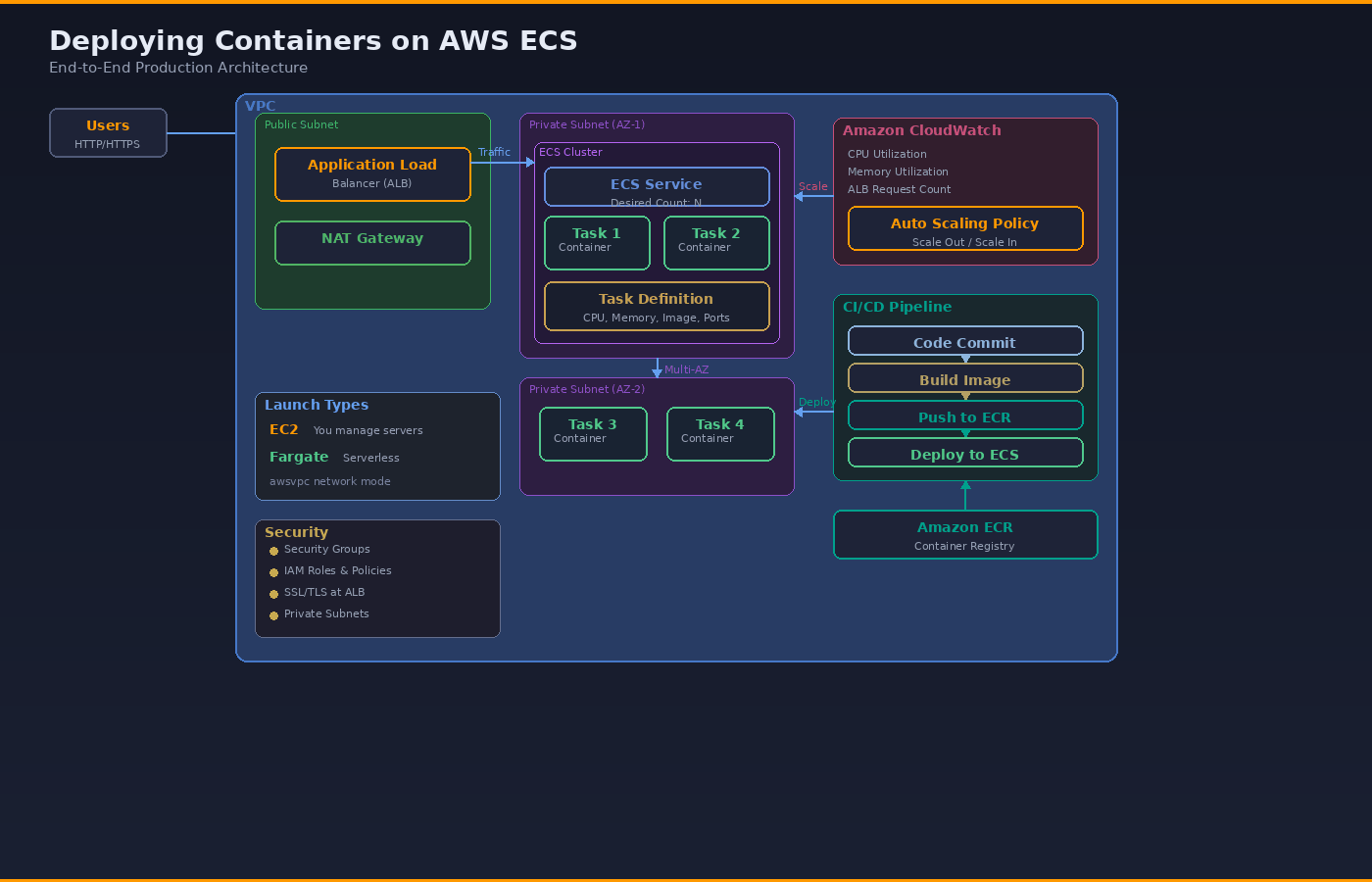
Modern applications demand scalability, security, automation, and high availability — and this is exactly where Amazon Elastic Container Service (ECS) shines. This post walks through a complete production-ready container deployment model on AWS, layer by layer.
What: The 5 Layers of ECS Architecture
Layer 1 — Users and Entry Point
Users access the application through an Application Load Balancer (ALB) deployed in a Public Subnet inside a VPC. The ALB handles HTTP/HTTPS traffic, performs health checks against ECS tasks, and distributes traffic across running containers. SSL/TLS termination happens here — offloading encryption from your containers and simplifying certificate management with AWS Certificate Manager (ACM).
Layer 2 — Networking (VPC Design)
The entire setup runs inside a secure VPC architecture with clear subnet separation:
- Public Subnets — the ALB and a NAT Gateway live here. These are the only resources exposed to the internet.
- Private Subnets — ECS tasks run here with no direct internet exposure. Outbound traffic (pulling images, calling APIs) routes through the NAT Gateway.
- Security Groups — act as virtual firewalls controlling inbound/outbound traffic at the task and ALB level.
- IAM Roles — task execution roles (for pulling images from ECR and writing logs to CloudWatch) and task roles (for your application to call other AWS services).
For high availability, deploy across at least two Availability Zones. Place one NAT Gateway per AZ to avoid a single point of failure.
Layer 3 — Compute (ECS Cluster)
Inside the ECS Cluster, three key concepts work together:
Task Definition — the blueprint. It defines CPU allocation, memory limits, container image URI, port mappings, environment variables, log configuration, and IAM roles. Think of it as a versioned "recipe" for your container.
ECS Service — the manager. It maintains the desired number of running tasks, handles rolling deployments, integrates with the ALB for load balancing, and replaces unhealthy tasks automatically.
ECS Tasks and Containers — the actual running application. Each task is an instantiation of a Task Definition and contains one or more containers.
ECS supports two launch types:
- EC2 Launch Type — you provision and manage the underlying EC2 instances. More control, more operational overhead. Useful when you need GPU instances, specific instance types, or want to optimize costs with Reserved Instances or Savings Plans.
- Fargate Launch Type — serverless container execution. AWS manages the infrastructure entirely. You only define CPU and memory at the task level. Uses awsvpc network mode exclusively, giving each task its own ENI (Elastic Network Interface) and private IP address.
Layer 4 — Auto Scaling and Monitoring
Amazon CloudWatch collects metrics from your ECS tasks. The three key metrics for auto scaling are:
- ECSServiceAverageCPUUtilization — average CPU usage across all tasks in the service
- ECSServiceAverageMemoryUtilization — average memory usage
- ALBRequestCountPerTarget — request count per target registered with the ALB
Based on these metrics, ECS Service Auto Scaling (powered by Application Auto Scaling) adjusts the task count:
- Scale out during high traffic — adds more tasks to handle load
- Scale in during low traffic — removes tasks to reduce cost
The recommended approach is target tracking scaling — you set a target value (e.g., "keep CPU at 70%") and AWS manages the scaling math automatically. The system scales out quickly to protect availability but scales in gradually to prevent flapping.
One important detail: Auto Scaling pauses scale-in during active ECS deployments to avoid disrupting rollouts.
Layer 5 — CI/CD and Image Management
Modern ECS deployments integrate a CI/CD pipeline:
Code Commit → Build Image → Push to ECR → Deploy to ECS
Container images are stored in Amazon Elastic Container Registry (ECR) — a fully managed Docker registry integrated with ECS. ECR supports image scanning for vulnerabilities, lifecycle policies for cleanup, and cross-region replication.
CI/CD tools like GitHub Actions, AWS CodePipeline, or Jenkins automate the full flow:
- Developer pushes code to the repository
- Pipeline builds the Docker image
- Image is tagged and pushed to ECR
- Pipeline triggers an ECS service update with the new image
- ECS performs a rolling deployment — launching new tasks before draining old ones
The result: zero manual deployments. Every code change flows through an automated, repeatable pipeline.
Why: This Architecture Matters
This is not just "running containers." It is production-grade cloud architecture because it addresses the five pillars that matter in real workloads:
- Secure — private subnets for compute, IAM roles with least privilege, Security Groups as network firewalls, SSL termination at ALB
- Scalable — auto scaling policies respond to real-time metrics, adding or removing tasks as demand changes
- Highly Available — ALB distributes traffic across multiple AZs, ECS replaces failed tasks automatically, NAT Gateway per AZ eliminates single points of failure
- Cost Efficient — Fargate for variable workloads (pay per task), EC2 with Reserved Instances for steady-state workloads, scale-in policies reduce waste during off-peak
- Fully Automated — CI/CD pipeline from code commit to production deployment with zero manual steps
How: Getting Started
If you want to set this up from scratch, here is the order of operations:
# 1. Create VPC with public + private subnets (2 AZs minimum)
aws ec2 create-vpc --cidr-block 10.0.0.0/16

# 2. Create ECR repository
aws ecr create-repository --repository-name my-app

# 3. Build and push your container image
docker build -t my-app .
docker tag my-app:latest <account-id>.dkr.ecr.<region>.amazonaws.com/my-app:latest
aws ecr get-login-password | docker login --username AWS --password-stdin <account-id>.dkr.ecr.<region>.amazonaws.com
docker push <account-id>.dkr.ecr.<region>.amazonaws.com/my-app:latest

# 4. Register a Task Definition (JSON file)
aws ecs register-task-definition --cli-input-json file://task-def.json

# 5. Create an ECS Cluster
aws ecs create-cluster --cluster-name my-cluster

# 6. Create ALB + Target Group
# (use AWS Console or Terraform for this — multiple steps)

# 7. Create ECS Service linked to ALB
aws ecs create-service \
  --cluster my-cluster \
  --service-name my-service \
  --task-definition my-app:1 \
  --desired-count 2 \
  --launch-type FARGATE \
  --network-configuration "awsvpcConfiguration={subnets=[subnet-xxx],securityGroups=[sg-xxx],assignPublicIp=DISABLED}" \
  --load-balancers "targetGroupArn=arn:aws:...,containerName=my-app,containerPort=8080"

# 8. Configure Auto Scaling
aws application-autoscaling register-scalable-target \
  --service-namespace ecs \
  --resource-id service/my-cluster/my-service \
  --scalable-dimension ecs:service:DesiredCount \
  --min-capacity 2 --max-capacity 10
In practice, most teams use Terraform, CDK, or CloudFormation to manage this declaratively rather than running CLI commands.
P/S: If you are learning Cloud and DevOps, mastering ECS architecture like this moves you from beginner to architect mindset. Understand every layer, know why each component exists, and you will be able to design production systems — not just deploy tutorials.